Lab 1: Getting to Know Kaggle and Google Sheets
Welcome to the presentation of the first lab for Data Science Focused for Social Sciences! This lab focuses on introducing Kaggle, a resource for data sets, and how to analyze them using Google Sheets. We will be covering how to navigate through your system to download datasets and upload them into Google Sheets.
Setup
To do this lab, you will need a computer with local storage like a hard drive. Before we get started, it is important that you can access to both Kaggle and Google Sheets. You can use the links below to travel to those websites.
Group Activity: Kaggle Setup for your Group (5 minutes)
To start this activity, please get into a group of at most 5 people. One person will need to create a free Kaggle account, so please designate one person in your group to create a Kaggle account using the link above.
Group Activity: Accessing the Datasets in Kaggle (10 minutes)
Once your account is set up, you will want to access a dataset for your group to start working with. To do this, go on the Kaggle website after creating your account and select the “Datasets” Tab.
Datasets tab
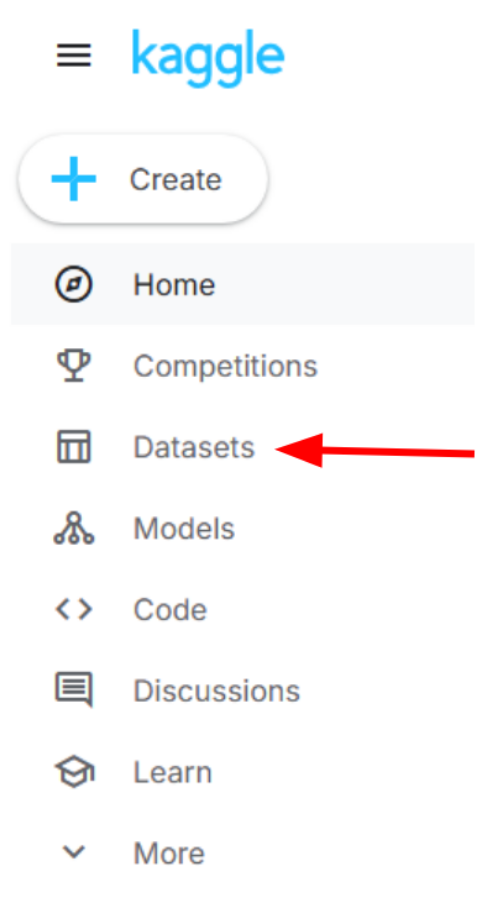
For this presentation, we will be focusing on datasets that are focused on education. To do this, select the “Education” tab once you are in the datasets page on Kaggle.
Education tab

Once you have selected the “Education” tab, spend some time with your group to select a dataset that your group is interested in. With selecting a dataset, there are some aspects of the dataset you should keep in mind.
Computer files take space in the local storage of your computer, and the unit for digital information is called a byte. The common file sizes that are used are:
Kilobyte (KB) - 1000 bytes
Megabyte (MB) - 1000 KB
Gigabyte (GB) - 1000 MB
Terabyte (TB) - 1000 GB
Besides the size, there are other aspects of a dataset we must be mindful of:
Number of rows
Number of columns
Column Names
Type of data each column contains
This is important because Google Sheets has a 50 MB limit on files you can upload. With this knowledge, try to find a dataset that interests you and is under 50 MB (preferably closer to 10-15 MB).
Dataset Information
When selecting a dataset, there are some tabs in Kaggle that you should know about in order to learn more about your dataset.
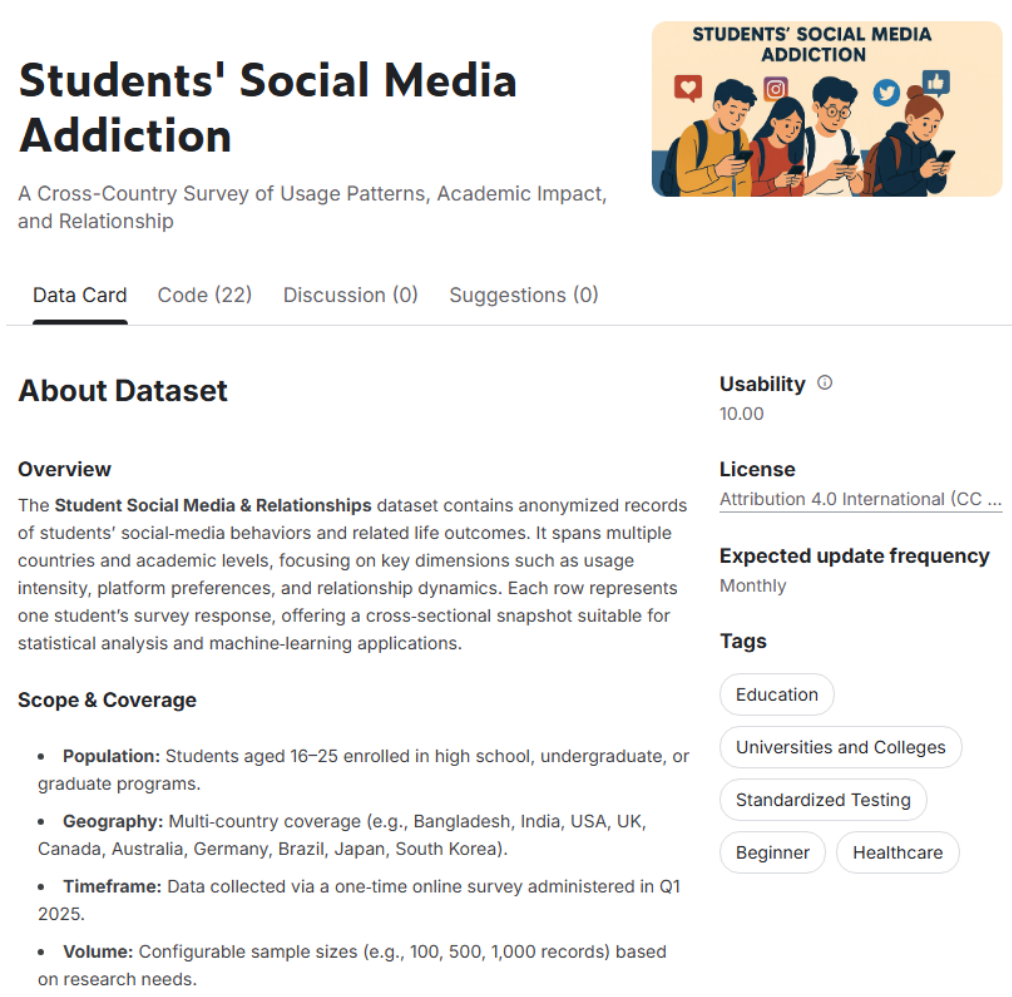
When you have selected a dataset, there is a “About Dataset” section that provides an overview and description of the dataset; scope, data collection methodology, and data quality standards. Here is an example:
Kaggle "About Dataset" example
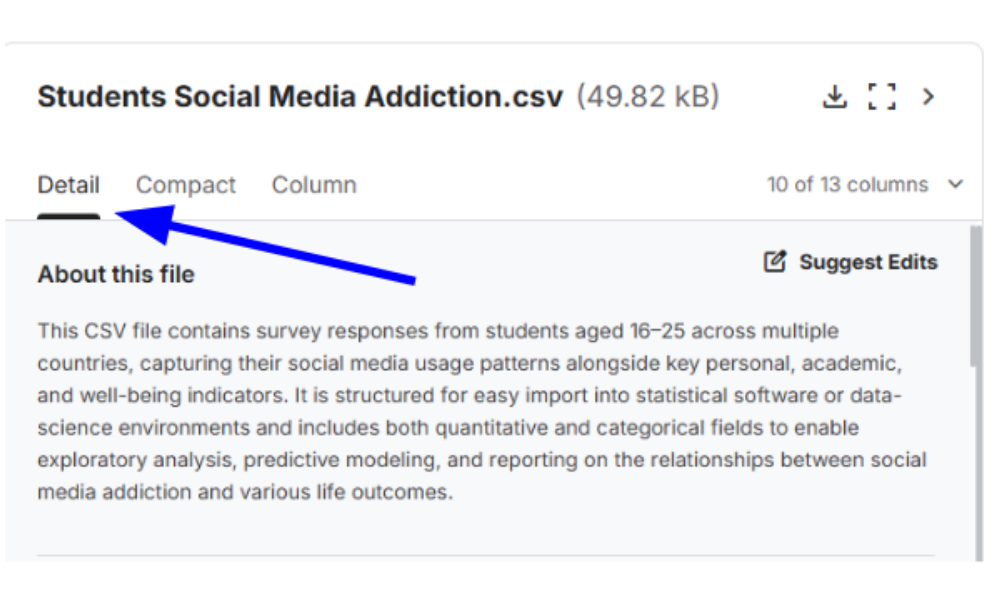
If you scroll down a bit, you will see another tab named “Detail” tab that provides file type and data information.
Detail tab
The “Compact” tab provides an overview of the dataset as a relational database.
The left blue arrow describes the size of the dataset, and the right blue arrow shows the download icon for the dataset.
The green arrow points to a dropdown menu that displays the number of columns in the dataset.
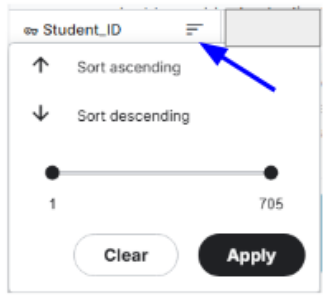
The red arrow points to a drop down menu that allows you to sort the data by ascending/descending order. You can also choose a minimum and maximum value that you want to see in the dataset as well.
Compact tab
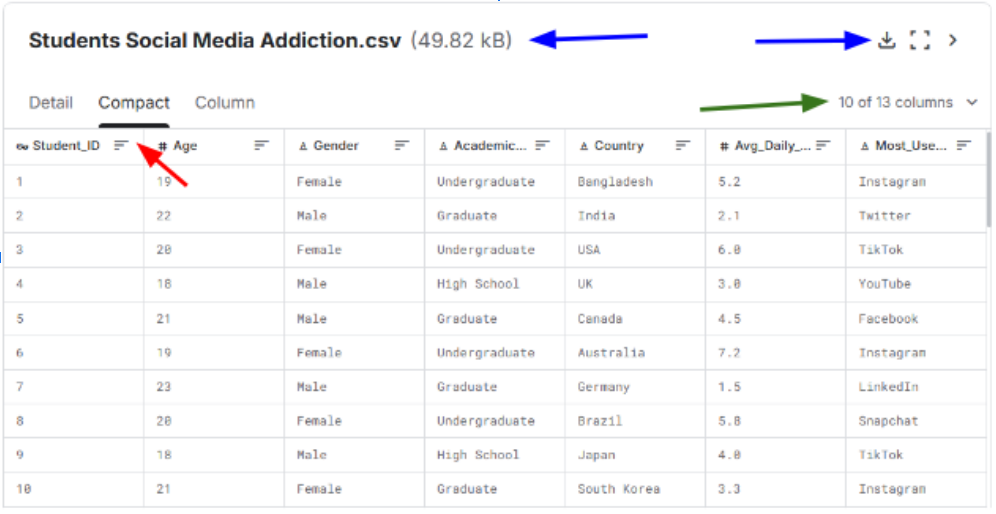
Compact Sorting Tab
If you are not able to get Kaggle to work or find a dataset, here are some links to datasets you could use instead:
Students’ Social Media Addiction | Google Sheet for this Dataset
Student Habits vs Academic Performance | Google Sheet for this Dataset
Global YouTube Statistics 2023 | Google Sheet for this Dataset
Here are 2 other datasets you can choose from, but these are slightly problematic.
There are some questions that you should keep in mind for the dataset your group chooses:
What is a question you would like to explore or answer using this dataset?
Think about something you are curious about or a pattern you would like to discover.
What measurement(s) or variables from the dataset would help you answer your question?
Think about the specific columns/types of data you would need
What is an ethical question or consideration related to analysing/using this dataset?
Think about how the data could reveal sensitive information, reinforce bias, or be misinterpreted?
Once these questions have been addressed in your group regarding the dataset you choose, it’s time to create questions about your dataset.
Group Activity: Develop 2 Questions about the Dataset (15 minutes)
Now that your group has selected a dataset to analyze, it’s time for your group to create 2 questions that you seek to answer with your dataset. When creating these questions, keep in mind what measurement or measurements would help you answer your questions.
When creating your questions, there are some ethical considerations that should be noted:
Where does the data come from?
How was the data collected/acquired?
Who benefits from the data collection?
Who might be harmed by the data collection or its use?
Is there consent for data collection?
What was the original purpose for collecting this data?
Type questions here
Once your group has address these questions, there will be time to share your questions with the full audience, so please try to do so!
Group Activity: Import the Kaggle Dataset to Google Sheets (5 minutes)
Once the group discussion has been completed, it’s time to downoad your dataset to import it into Google Sheets.
Make sure that the dataset you choose is a .csv file in Kaggle, and the size of the dataset is less than 50 MB in size, preferably <10-15 MB.
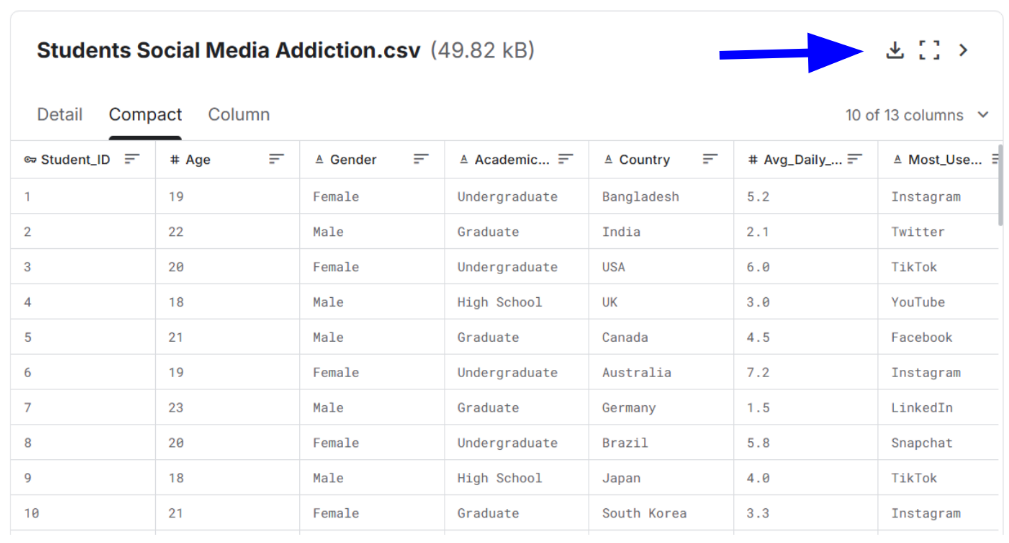
You can download the dataset as a .csv file. To do this, click on the download button pointed out by the blue arrow on the “Compact” tab.
Download Button Location
Once your dataset is downloaded, you will need to log into Google Sheets using your gmail account. Once you do that, create a blank spreadsheet for you to import your dataset into.
Blank Spreadsheet Location

Once you have created your blank spreadsheet, click on the “File” tab and click the “Open” option.
File Tab Location

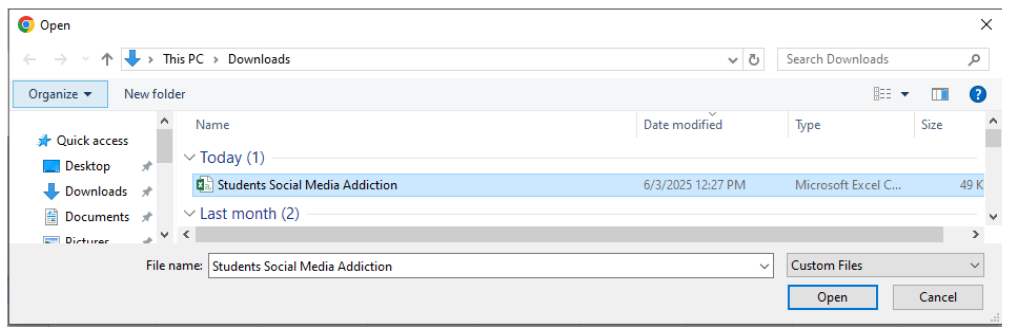
This will open your computer’s “Downloads” folder for any downloads you have made on your computer. You will want to select the dataset file that you just downloaded to open for the spreadsheet you have just created.
Downloads Folder Example
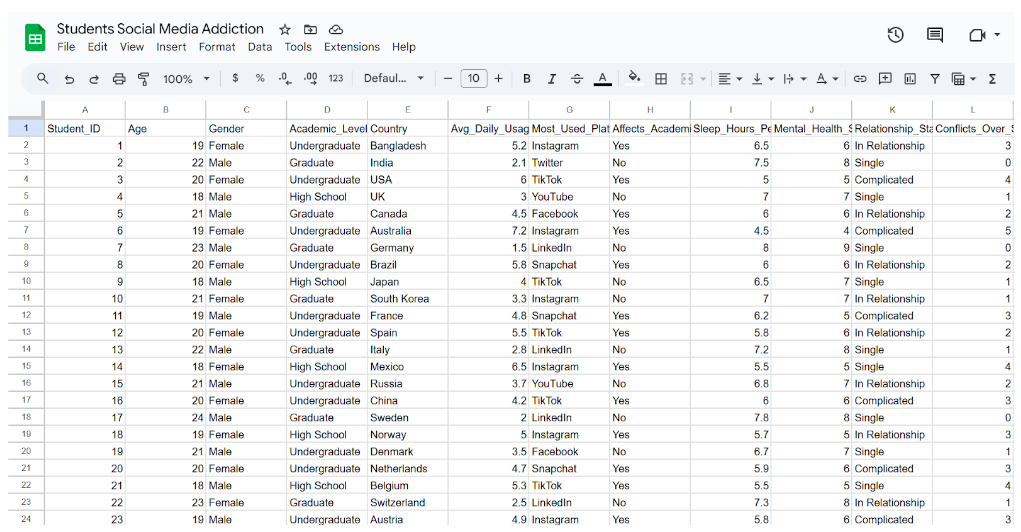
This will import the dataset you have just downloaded into the blank spreadsheet in Google Sheets. Your spreadsheet should now be filled with information; an example is provided below.
Imported Dataset Example
That concludes the presentation of the lab assignment for Data 6! You can find the full lab assignment and then rest of the course materials for the first section of this module in our GIT repository.